Registration & Check-In Steps
NCFCA tournaments are open to eligible students from affiliated families. Each tournament requires separate registration and check in. Please read the steps below for a smooth start.

League Policies
Please review the steps below to ensure a smooth registration process for each tournament.
Tournament Registration Timeline Overview
All tournaments require advance registration. Please review our Pre-Tournament Policies for crucial details.
- Registration Opens: Beginning on November 2 and as tournaments are added to our schedule.
- Regular Registration Closes: Four weeks before the start of a tournament on the first business day of the week at 2:00pm Central Time. To avoid late fees, payment is due before Regular Registration closes.
- Registrar Day: The next day, registrations are processed and waitlists are established if necessary.
- Late Registration: Opens the day after Registrar Day for available events with a late fee per competitor.
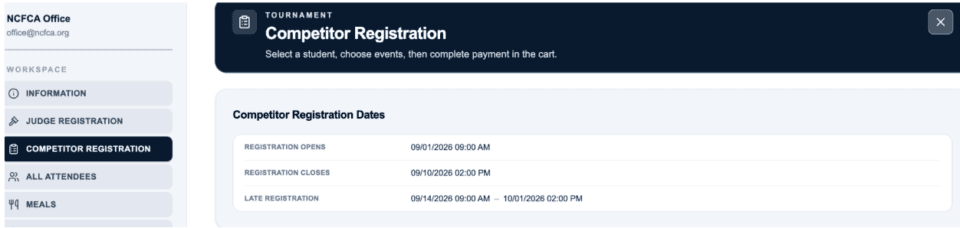
Key registration dates are available from MyPlace > Tournaments > ENTER > Competitor Registration. Families will also receive email reminders for the close of regular registrations.

Selecting Competitor Events for Registration
- Log in to MyPlace.
- Select Tournaments from the left-side menu.
- Click the Registration tab in the light blue band.
- Click the Enter button for the tournament you want.
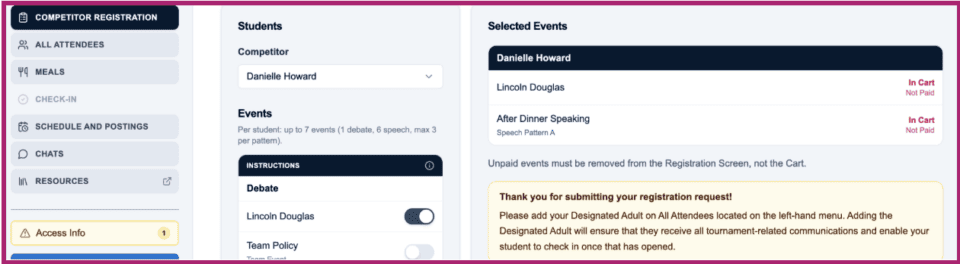
- Select Competitor Registration from the left-side menu.
- Select a student (must be set as an eligible competitor in Eligibility-Tab 4- of profile) found within the Family menu located on the left hand side of MyPlace.
- Toggle events for the selected student.
- Repeat for additional students.
Registering Other Attendees
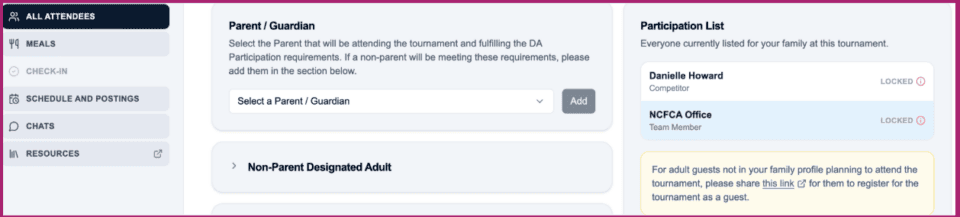
Click the All Attendees option from the left-side menu of your chosen tournament to complete the registration process for anyone who will not be a competitor.
Identify the Responsible Adult(s)
Each family must specify at least one Parent/Guardian or Designated Adult who will participate in the tournament on behalf of the family in accordance with our Parent or Designated Adult Participation Requirements.
- If parent(s) will be attending, please select their names from the Parent/Guardian Dropdown.
- The toggle in Profile-Tab 1 for Parent/Guardian must be turned on for the parent(s) name to appear.
- Click Add Family Participant to see the name appear in the participant list to the right.
- If a parent will NOT be attending, please complete the Non-Parent Designated Adult section.
- The Designated Adult must have an NCFCA account with a unique email address for our system to find.
- When the correct person is identified, click Add Family Participant to see the name appear in the participant list to the right.
Add Other Family Attending
Please identify any additional non-competing family members on your family account who will be at the tournament with you so that we can prepare name tags in advance for them and ensure completion of safety requirements for adults. Adults who are not in your family profile can register as a guest on Visit a Tournament | NCFCA, or by registering as a community judge from their own NCFCA account.
Attending Minors
Add any minors attending with your family. If you are bringing a minor who is not your child or for whom you are not the parent/legal guardian, you must bring an NCFCA Release Waiver signed by the parent/legal guardian and be in possession of a signed medical release form.
- If parent(s) will be attending, please select their names from the Parent/Guardian Dropdown.
Completing the Registration Process
Registrations are not final until all registration fees are paid.
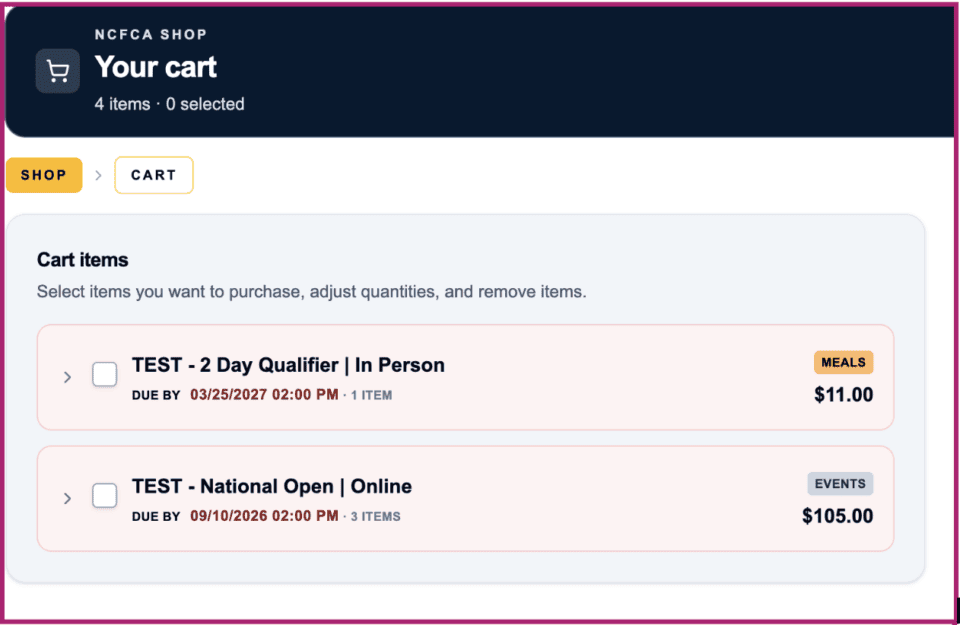
- From the MyPlace main page, select the shopping cart (top right).
- Check the box for the tournament you are ready to pay for. (Note: All Events and Tournament Fees associated with a tournament must be paid for together as one transaction. Partial payments within a tournament are not permitted.
- Complete the payment process.
Purchasing Meals & Products (Optional)
Meals: Food breaks during tournaments are challenging, so we offer meals to be delivered at each facility.
- Orders must be placed and paid in advance, prior to the deadline.
- The deadline is FIRM.
- Meal orders are placed through MyPlace using the Meals option in the left-side menu of the tournament you choose.
- As you order, consider each participant and inform family members regarding which meals to expect.
- Refunds are not offered for meal purchases.
Products: At some tournaments, we offer special merchandise selections such as t-shirts.
- Pre-order and prepayment will ensure availability of your selections.
- The quantity of extra items available for purchase onsite is generally very limited.
- Orders are placed through the NCFCA Shop.
- Please see our Refunds policy for information on returns.
Late Registration Process
Late registration opens on the second business day after regular registration closes. New registrations may be added as space allows. The process is the same as for regular registrations, but a late fee will be added to the cart for each competitor. Registrations are not final until all registration fees are paid.
Event Exchange Process
- Prior to registration payment, event exchanges can be made by simply untoggling one event and toggling another.
- After Payment but before registration closes, events may be exchanged free of charge by choosing the circle arrows on the tournament registration page. If swapping into a partnered event, please contact the registrar at gro.ACFCN@rartsigeR with all pertinent information, including student name(s), events, and the tournament name
- After registration closes but prior to check-in opening, event exchanges are allowed with a $25 fee by choosing the circle arrows on the tournament registration page. If space is available, the exchange will be processed. The fee must be paid before the exchange is finalized. If swapping into a partnered event, please contact the registrar at gro.acfcN@rartsigeR with all pertinent information, including student name(s), events, and the tournament name.
- After check-in opens, no event exchanges are allowed except under extenuating circumstances; please contact your Regional Coordinator.
Event Drop Process
- Prior to payment, events can be dropped by un-toggling the event on the Registration page of the specific tournament.
- After payment but before regular registration closes, events can be dropped by selecting the trash can on the Registration page of the specific tournament. Fees are refundable until regular registration closes.
- After regular registration closes but prior to check-in opening, drops are allowed but refunds are only available in extenuating circumstances. Events can be dropped by selecting the trash can on the Registration page of the specific tournament.
- After check-in opens, drops are only allowed for extenuating circumstances. Please contact your Regional Director.
Check In Timeline Overview
Separate check in is required for each participant—parents, designated adults, and competitors—before each tournament.
- Check In Opens: four business days before the tournament start date.
- Regular Check In Closes: two business days before the tournament start date.
- Late Check In Window: One business day before the tournament start date from 10am-12pm Central Time with a late fee.
Please review our Pre-Tournament Policies for crucial details.
Check-In Steps
When the check-in window opens, log in to MyPlace, enter the tournament, and look for the Check-in button.
- Family members must log in separately using the email address from their profile within the family account.
When competitors check in, they will
- Verify profile information
- Confirm events
- Submit any required scripts. See the Script Submission Tips section for help.
- Certify intent to comply with rules, policies and the Competitor Ethics Statement.
When parents or DAs check in, they will
- Verify the phone number for the tournament. (Changing the number here changes it only for the tournament.)
- Review the status of required script submissions for competitors.
- Certify tournament preparation review and judge training for the season.
- View the status of competitor check-in for the family.
When all check-in steps are complete, the dashboard will indicate that check-in is complete. It may be necessary to refresh the browser screen for this verification. (The Check-in Button will continue to display under My Registration until check-in closes.)
Script Submission Steps
All platform and interpretation events require competitors to upload a script of their speech. Please see the Speech Guidelines for details regarding the script requirements for each event.
- From the Script Submission step in the Check-In Process, click each event to open up the submission form. Scripts must be submitted in .pdf (preferred), doc, .docx, .jpg, or .png format.
- Numerals must be entered for characterized and quoted words even if the total count is zero.
- All script files are uploaded in the same drag-and-drop window. Two files are allowed to upload formats 1 and 2 for interpretation speeches and slides for Digital Presentation.
Troubleshooting & Solving Problems
Common Issues
- Name not appearing in a dropdown list for registration—please check the account profile tabs for the missing individual
- Parents, be sure the Parent/Guardian option is toggled under the Profile Tab 1.
- Students, be sure the settings are correct under the Student Eligibility Tab 3.
- Script submission not accepted—check that numerals are entered for all word counts even if the count is zero.
- Not seeing registration or check in options—be sure you are logged in with the correct email address from your profile within the family account. If you realize you have created multiple profiles with different email addresses, please contact our office for help.
Other Problems and Questions
- For problems with the account setup, registration, or check-in process—contact the Office at gro.ACFCN@eciffO.
- For problems with a payment or refund process—contact the Registrar at gro.ACFCN@rartsigeR.
- For questions about policies or special circumstances, please contact your Regional Director or the Tournament Coordinator listed under the Information section of the left-side menu for the tournament.
- Name not appearing in a dropdown list for registration—please check the account profile tabs for the missing individual